How-to: Work with the L7|ESP License
The L7|ESP License controls access to the L7|ESP Applications, enabling the various features in the platform. An up to date license is required for operation of the software. For license inquiries, please contact L7 Support or your Account Team for more details and to generate an updated license when needed. New and updated licenses can be applied in several ways. This article discusses the methods for updating the license.
Applying the License in the User Interface
As the prime admin user, the License Manager menu will be visible and available in the Profile menu (top-right portrait icon on any page).
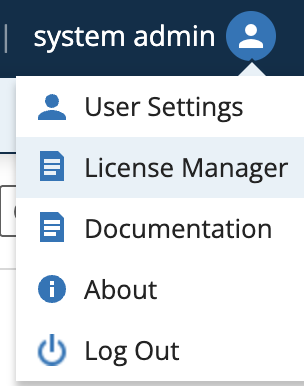 |
The prime user is typically the initial user set up for L7|ESP, and for most installations will be the admin@localhost username. If the License Manager icon is not visible, it is likely the current user logged in is not set as a prime user. Please log in as the prime user and try again, or use the alternate methods described in this article to update the license if the prime user is not accessible.
In the License Manager menu, the license file can be applied via drag and drop, or by browsing your local machine for the file to upload.
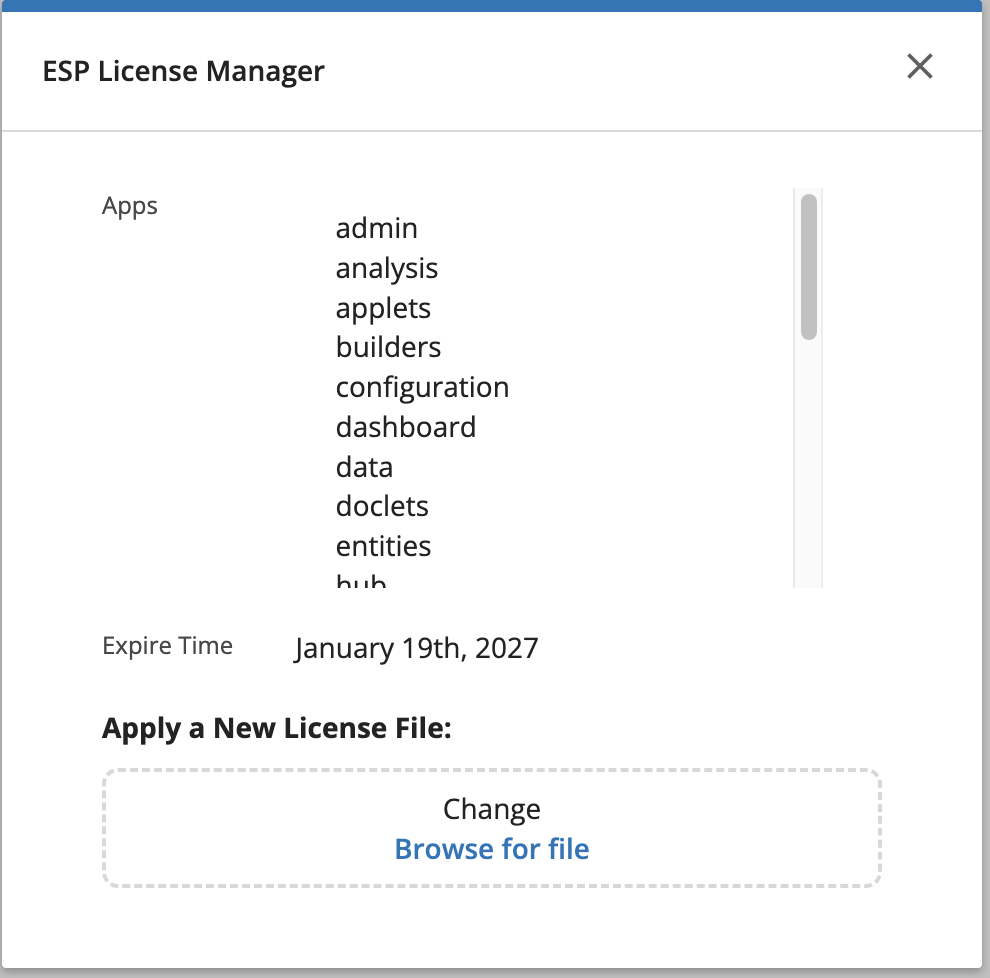 |
Any changed applied via the the License Manager, should be visible by revisiting the License Manager menu.
Applying the License via the Browser API Tool
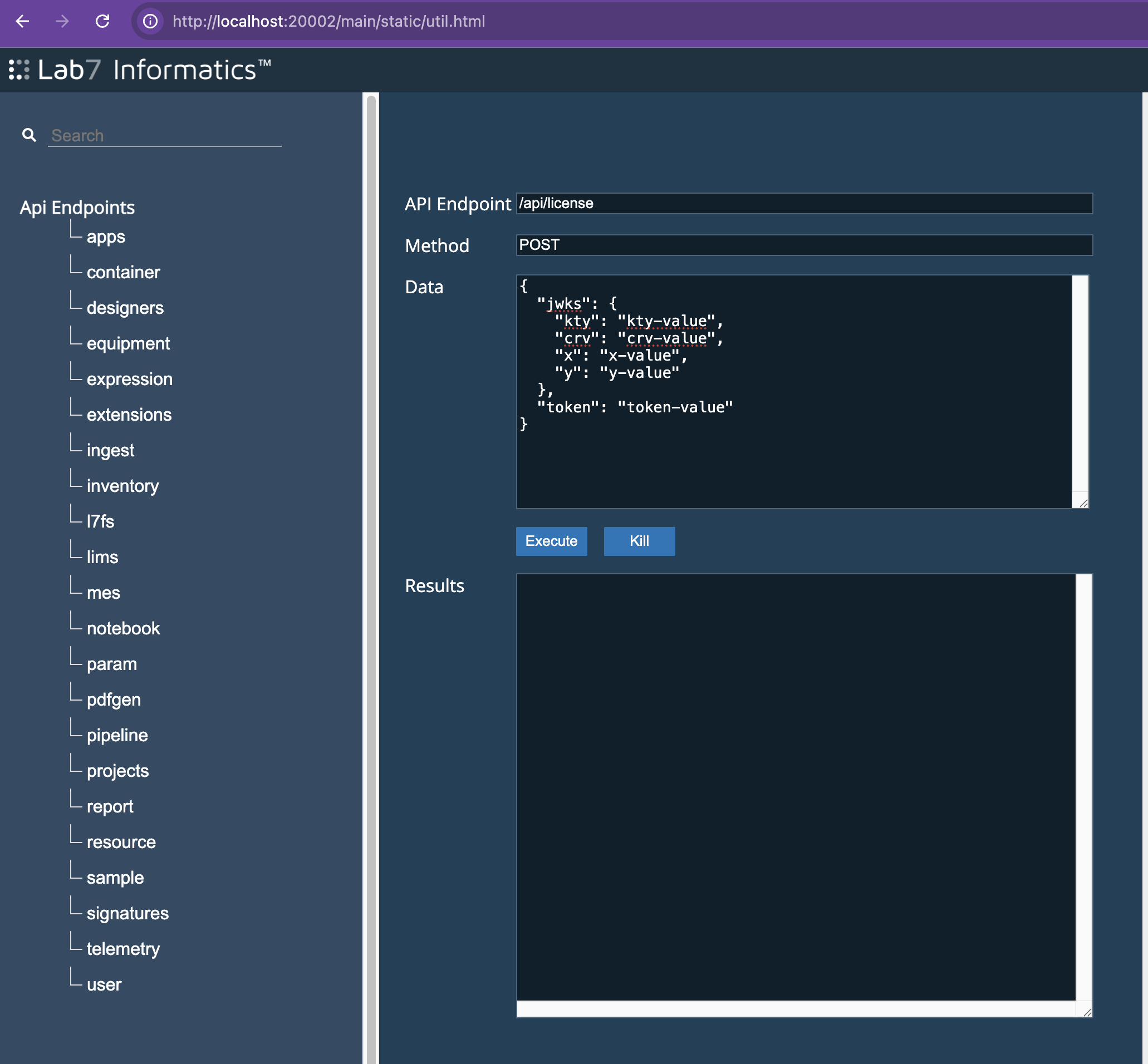
As a logged in user, an API Tool is available to send data to the server (similar to developer tools like Postman, which can also be used with the proper credentials).
The updated license information can be sent directly via network call (the same calls made by the License Manager menu). Any user with the default/standard “admin” Role assigned in the IAM application can update the license (custom administrator roles cannot set the license).
Visit the URL /main/static/util.html page from your normal ESP URL. For example, if your URL is https://my.l7esp.com, visit https://my.l7esp.com/main/static/util.html
Update the Method text field to POST
Update the endpoint text field to /api/license
Update the payload text field with the contents of the license text file
Click the Execute button
The new license should now be applied and the expiration and applications allowed will be updated.
Applying the License via the Command Line
The license can also be applied directly on the server or remotely with the espclient's esp commands.
You will need to copy or write the license file into the application container. This can either be added to the deployment files or copied in using your deployment tooling (Docker, Kubernetes, etc commands). You could also write the file using the packaged vim utility inside the container.
Get a shell into the application container. Your prompt should denote (base) at the command line which indicates you have the espclient environment active. (If (base) is not present, you can attempt to activate it with the command source /opt/data/extensions/client/bin/activate.)
Once you have the license file available at the command line, you can use the espclient esp command:
esp --password my_admin_password license /opt/l7esp/data/project/my_license.license -- adjust this path as needed
If you have a local installation of espclient, you can also run this command targeting your L7|ESP host:
esp --port 443 --host my.l7esp.com --password my_admin_password /path/to/my_license.license
These commands will send a network call to ESP with the default or provided connection parameters (see esp --help for usage details). This network call will be similar to the network calls made with other methods, and will apply the license file to the application.